



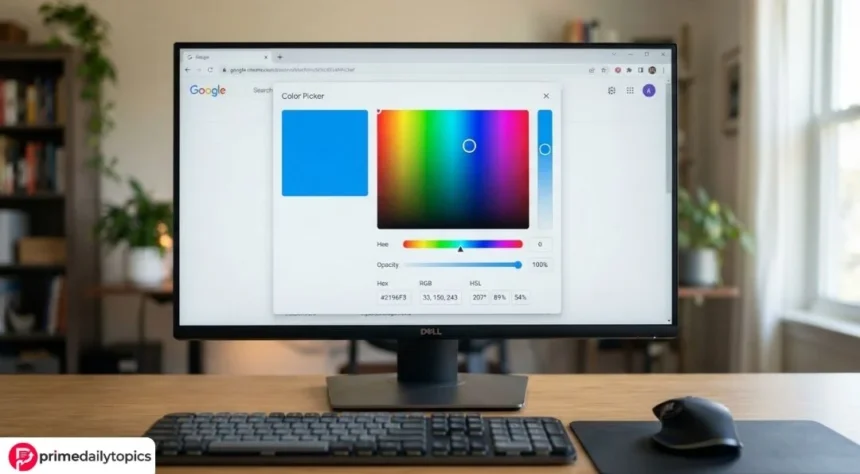
The Google Color Picker is a free tool that appears directly in Google Search. It lets you choose a color visually, enter a color code, and convert that color between several formats, including HEX, RGB, HSL, HSV, and CMYK. Because the tool runs inside the search results, you do not need to install an extension or open a separate website.
To access it, search Google for “color picker” or enter a supported color code, such as #4285f4. Google should then display the interactive picker above the standard search results.
Google Color Picker at a glance
| Feature | Availability |
|---|---|
| Visual color selection | Yes |
| HEX values | Yes |
| RGB values | Yes |
| HSL values | Yes |
| HSV values | Yes |
| CMYK values | Yes |
| Pantone input | Supported for searches |
| Image color extraction | No |
| Screen eyedropper | No |
| Contrast checker | No |
| Installation required | No |
How to open the Google Color Picker
The quickest method involves a simple Google search:
- Open Google Search.
- Enter
color picker. - Select a color by dragging the circular marker.
- Move the hue slider to explore another part of the color spectrum.
- Choose a color format from the menu.
- Copy the displayed value.
Alternatively, search for a specific color code. For example, entering #ff5733 should open the picker with that shade already selected.
According to Google Search Help, the tool accepts searches in formats such as:
#f0f0f0color f0f0f0rgb (255, 255, 255)rgb 255 255 255pantone 214 upms 200 c
However, the feature may not appear in every browser, region, device, or search-results layout. Therefore, if Google does not display the picker, check the code for typing errors and try searching for the exact phrase “color picker.”
How the Google Color Picker works
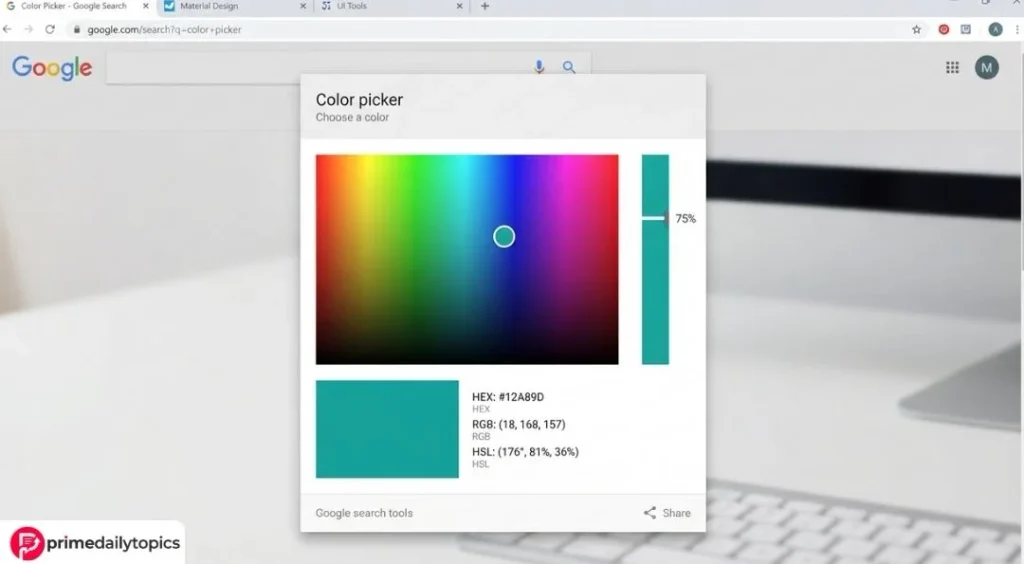
The tool combines a visual selection area with a hue slider and editable numeric fields.
First, the hue slider selects the general color family, such as red, blue, green, or purple. Next, the larger color area lets you adjust saturation and brightness. As you move the selector, Google updates every displayed color value.
Therefore, you can use the tool in two ways:
- Choose a color visually and copy its code.
- Enter a known code and convert it into another format.
For example, if you enter #4285f4, Google can show the corresponding RGB, HSL, HSV, and CMYK values. As a result, designers and developers can move a color between different applications without calculating each conversion manually.
Color formats supported by Google
Each color format represents color information differently. Consequently, the right format depends on where you plan to use the color.
HEX
HEX codes represent red, green, and blue through six hexadecimal characters. They begin with a hash symbol, as in #4285f4.
Web designers commonly use HEX values in CSS and design tools because the code remain compact and easy to copy. For example:
color: #4285f4;RGB
RGB describes a color through red, green, and blue values that usually range from 0 to 255.
For example, rgb(66, 133, 244) combines 66 red, 133 green, and 244 blue. Developers frequently use RGB when they need direct control over those three screen-color channels.
HSL
HSL stands for hue, saturation, and lightness. Hue identifies a position on the color wheel, while saturation controls intensity and lightness determines how bright or dark the color appears.
HSL often makes manual color adjustments easier. For instance, a designer can keep the same hue while changing only the lightness to create darker or lighter variations.
HSV
HSV means hue, saturation, and value. Like HSL, it gives users a more intuitive way to adjust a color. However, HSV calculates brightness differently.
Many graphics and design applications use HSV because it closely matches the experience of selecting a hue and then adjusting its intensity and brightness.
CMYK
CMYK represents cyan, magenta, yellow, and black. Printers commonly use these ink-based channels for physical output.
Nevertheless, Google’s conversion cannot guarantee that a printed color will perfectly match the color on a screen. Printers, paper, ink, device profiles, and color-management settings can all change the final result. Therefore, use professional proofs and calibrated workflows for color-critical print projects.
Can Google Color Picker select a color from an image?
No. Google’s search-based color picker does not provide an image-upload feature or an eyedropper for sampling a pixel from a photograph, screenshot, or webpage.
You can still enter a color code if you already know it. However, you will need another tool to extract that code from an image.
Chrome DevTools offers one alternative for webpage colors. Google’s Chrome DevTools Color Picker documentation explains how developers can inspect CSS colors and use an eyedropper to sample a color from the screen.
To open that tool:
- Right-click a webpage element and select Inspect.
- Find a
color,background-color, or similar property in the Styles panel. - Click the small color-preview square.
- Select the eyedropper.
- Click the color you want to sample.
Unlike the Google Search tool, Chrome DevTools targets developers who need to inspect and modify webpage styles.
Google Color Picker versus Chrome DevTools
Although both tools handle colors, they serve different purposes.
| Google Search Color Picker | Chrome DevTools Color Picker |
|---|---|
| Opens through Google Search | Opens inside Chrome’s developer tools |
| Converts common color formats | Inspects and edits webpage CSS |
| Requires no technical setup | Requires access to the Styles panel |
| Does not sample images or screens | Includes an eyedropper |
| Suits quick color conversions | Suits website testing and development |
| Does not edit a webpage | Shows temporary style changes |
Therefore, use Google Search when you need a quick color code or conversion. In contrast, use Chrome DevTools when you need to identify, test, or adjust a color on a webpage.
How to use picked colors accessibly
A visually attractive color may still create readability problems. For example, light-gray text on a white background can become difficult to read even if the combination looks subtle and modern.
The Web Content Accessibility Guidelines set a minimum contrast ratio of 4.5:1 for most normal text and 3:1 for large text at Level AA. However, the Google Color Picker does not calculate contrast ratios.
Therefore, after choosing text and background colors, test them with a dedicated contrast checker. In addition, avoid using color as the only way to communicate meaning. Error messages, required fields, charts, and status indicators should include text, icons, patterns, or other supporting cues.
Common reasons the color picker does not appear
Google may not display the tool for several reasons:
- The color code contains a typing or formatting error.
- The browser does not support the feature.
- Google shows a different search-results layout.
- Regional or account-level differences affect availability.
- A browser extension changes the results page.
- The search query does not clearly request a color conversion.
First, try searching for color picker without quotation marks. Next, test a simple code such as #ffffff or rgb 255 255 255. If the tool still does not appear, try a current version of a mainstream browser.
Conclusion
The Google Color Picker offers a fast way to choose colors and convert codes without installing software. It supports common formats such as HEX, RGB, HSL, HSV, and CMYK, which makes it useful for web design, development, presentations, and everyday creative work.
However, the tool cannot extract colors from images, sample screen pixels, or test accessibility contrast. For those tasks, use Chrome DevTools or a dedicated image-color and contrast tool. Most importantly, verify color contrast before applying a new palette to text or essential interface elements.
Frequently asked questions
Is the Google Color Picker free?
Yes. You can use it through Google Search without paying or installing an extension.
How do I open the Google Color Picker?
Search Google for color picker. You can also enter a valid code, such as #4285f4 or rgb 66 133 244.
Can Google convert HEX to RGB?
Yes. Enter a HEX code in Google Search, open the color picker, and select RGB from the format menu.
Does the Google Color Picker support CMYK?
Yes, the tool can display a CMYK conversion. However, the result does not replace a color-managed print workflow or a physical proof.
Can I pick a color from an image with Google?
The Google Search Color Picker does not extract colors from uploaded images. Instead, use an image color picker or an eyedropper tool.
Does Google Chrome have an eyedropper?
Chrome DevTools includes an eyedropper within its CSS Color Picker. It can sample colors from webpages and other visible areas of the screen, although its behavior may depend on the browser and operating system.
Why is the Google Color Picker not showing?
The code may contain an error, or the feature may not work in your current browser or search environment. Search for color picker directly and try a valid HEX or RGB value.
Read More Prime Daily Topics