


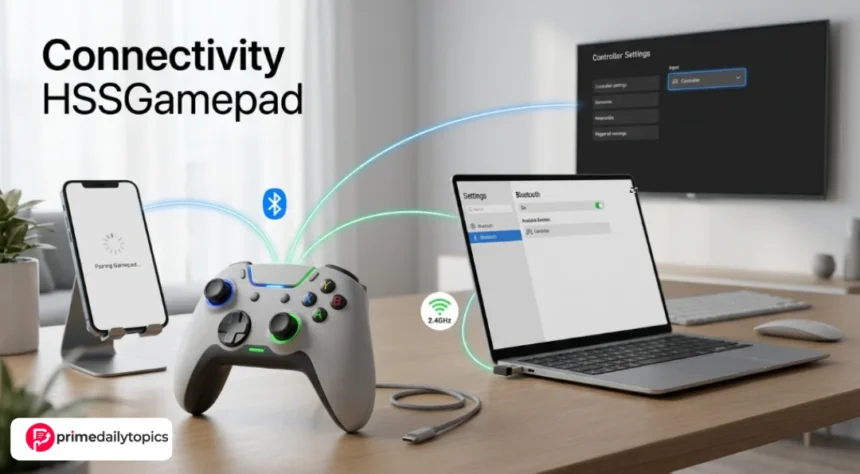
Connectivity HSSGamepad refers to how an HSS gamepad connects to a phone, tablet, Windows PC, smart TV, or supported gaming device. In most public guides, HSSGamepad connectivity is discussed through three main connection methods: Bluetooth, a 2.4GHz USB receiver, and wired USB.
The quick answer is this: if your HSSGamepad will not connect, first charge it fully, confirm the correct connection mode, remove old Bluetooth pairings, reconnect from your device settings, and test it in a game that supports controllers. If Bluetooth keeps failing, use the 2.4GHz dongle or a wired USB connection to separate controller problems from wireless interference.
Not every HSSGamepad model works the same way. Some models may support Bluetooth and USB, while others may include a 2.4GHz receiver or special Android/iOS modes. Always check the manual for your exact controller before assuming a button combination, LED pattern, or platform support.
Review note: This guide was prepared on September 13, 2026, using public HSSGamepad connectivity pages and official Bluetooth/controller support references. Controller models, firmware, operating systems, and game support can change.
Quick Fix Table
| Problem | Most likely cause | Best first fix |
|---|---|---|
| Gamepad does not appear in Bluetooth list | Not in pairing mode or connected to old device | Turn it off, enter pairing mode, forget old pairing |
| Connects but buttons do nothing | Wrong input mode or game lacks controller support | Test in another controller-supported game |
| Random disconnects | Low battery or wireless interference | Fully charge and move away from Wi-Fi/USB 3.0 clutter |
| Lag or delayed input | Bluetooth congestion or weak signal | Try 2.4GHz dongle or wired USB |
| Windows detects it but game ignores it | Driver/input standard issue | Test in Windows controller settings or Steam input |
| Phone connects but game menu ignores it | Game only supports touch menus or no controller input | Test during gameplay or check game settings |
| Dongle not working | Receiver not detected or controller not in dongle mode | Reinsert dongle, change USB port, restart controller |
| Wired mode fails | Charging-only cable or unsupported USB mode | Use a data cable and compatible port |
What Connectivity HSSGamepad Means
Connectivity HSSGamepad is not internet connectivity. It is the local connection between the controller and the device running the game.
That distinction matters. If your character moves late because your online game server is lagging, the gamepad may not be the problem. If button presses do not register, the controller disconnects, or the device cannot find the gamepad, then the issue is more likely controller connectivity.
The connection chain has three parts:
| Layer | What it controls |
|---|---|
| Controller connection | Bluetooth, 2.4GHz receiver, or USB wired link |
| Device recognition | Whether Android, iOS, Windows, or TV OS sees the controller |
| Game support | Whether the game accepts controller input correctly |
A connection can succeed at one layer and fail at another. For example, Windows may pair with the controller, but a specific game may not support that controller mode.
Main HSSGamepad Connection Methods
Most public HSSGamepad guides describe three common connection options.
| Method | Best for | Main advantage | Main limitation |
|---|---|---|---|
| Bluetooth | Phones, tablets, laptops, casual play | No cable or dongle needed | More prone to interference and pairing issues |
| 2.4GHz USB receiver | PC, TV boxes, low-latency wireless play | Usually more stable than Bluetooth | Requires the original receiver |
| Wired USB | PC, consoles, troubleshooting, long sessions | Most stable and lowest lag | Less freedom of movement |
If you are troubleshooting, wired USB is often the cleanest test. If the controller works by cable but not Bluetooth, the problem is probably wireless pairing, device settings, interference, or input mode.
How to Connect HSSGamepad by Bluetooth
Bluetooth is usually the easiest option for phones and tablets, but it is also where most pairing mistakes happen.
Use this general process:
- Fully charge the HSSGamepad.
- Turn the controller completely off.
- Disable Bluetooth on any old device that may reconnect automatically.
- Put the controller into its documented Bluetooth pairing mode.
- Look for a fast-blinking LED or pairing indicator, if your model uses one.
- Open Bluetooth settings on your phone, tablet, PC, or TV.
- Choose the controller when it appears.
- Wait for the device to confirm pairing.
- Test the controller in a game known to support gamepads.
Do not assume that turning the controller on automatically starts pairing mode. Many controllers first try to reconnect to the last paired device. If your HSSGamepad was previously used with another phone or PC, remove that old pairing before trying again.
Bluetooth Setup on Android
On Android, open Settings, then Bluetooth or Connected Devices. Choose the option to pair a new device, put the HSSGamepad into pairing mode, and select it when it appears.
If it pairs but a game does not respond, the game may not support controllers. Some Android games support controllers only during active gameplay, while menus still require touch. Others require controller settings to be enabled inside the game.
Before installing a button-mapping app, test native support first. Mapping apps can help in some cases, but they can also create duplicated inputs or incorrect button layouts.
Bluetooth Setup on iPhone or iPad
On iPhone or iPad, open Settings, then Bluetooth, and pair the controller when it appears. Apple’s official support explains that compatible wireless game controllers can also appear under game-controller settings when supported.
The important caution: seeing a controller name in Bluetooth does not guarantee full iOS or iPadOS compatibility. If you are buying an HSSGamePad specifically for iPhone or iPad, confirm that the exact model supports Apple devices before purchase.
Bluetooth Setup on Windows
On Windows, open Settings, then Bluetooth & devices, and use Add device. Select Bluetooth, put the HSSGamepad in pairing mode, and choose it when it appears.
If Windows pairs successfully but your game does not recognize the controller, test it in another game or a controller-testing screen. The issue may be input mode rather than Bluetooth. Some games expect XInput-style controllers, while others handle generic Bluetooth gamepads differently.
Steam can sometimes help by translating controller input, but that depends on the game and controller mode.
How to Connect HSSGamepad With a 2.4GHz Receiver
A 2.4GHz USB receiver, often called a dongle, creates a dedicated wireless link between the controller and the device. This is usually better for PC gaming than Bluetooth when you want lower input delay.
General setup:
- Plug the receiver into a USB port.
- Turn on the HSSGamepad.
- Switch the controller to its receiver or 2.4GHz mode if required.
- Wait for the controller and receiver lights to stabilize.
- Test the controller in a game or controller settings screen.
If the receiver is not detected, try another USB port. On desktop PCs, a front USB port or short USB extension can sometimes improve signal if the rear port is blocked by the case or nearby cables.
The main weakness of this method is the receiver itself. If you lose the original dongle, a random replacement may not work unless it is made for the same controller model.
How to Connect HSSGamepad by Wired USB
Wired USB is the most reliable connection method for troubleshooting. It removes Bluetooth interference, battery drain, and receiver pairing from the equation.
Use a real data cable, not a charging-only cable. Many USB cables can charge a device but cannot carry controller input. If the controller lights up but the device does not detect input, the cable is one of the first things to test.
Wired mode works best with PCs and some supported Android devices through USB OTG. Console support depends on the console, controller model, and input standard. Do not assume every HSSGamepad will work with PlayStation, Xbox, or Nintendo Switch unless the exact model says so.
Why HSSGamepad Connects but Does Not Work
This is one of the most common and frustrating cases. The device says the controller is connected, but the game ignores it.
Common causes include:
- The game does not support external controllers.
- The controller is in the wrong input mode.
- The device recognizes it as a keyboard or generic input device.
- The game supports controllers only after gameplay begins.
- A mapping app is interfering with native input.
- Windows or Android needs a reconnect after mode switching.
The fix is to narrow the issue. Test the controller in a different game known to support controllers. If it works there, the original game is the problem. If it fails everywhere, check pairing mode, input mode, driver support, and cable or dongle status.
How to Fix HSSGamepad Lag
Lag can come from two different places: controller input delay or internet/network delay.
Controller lag means your button press reaches the device late. Network lag means the game receives online updates late. A wired controller cannot fix a slow game server or weak Wi-Fi connection.
For controller lag, try these fixes:
| Fix | Why it helps |
|---|---|
| Fully charge the controller | Low battery can weaken wireless performance |
| Move closer to the device | Shorter distance improves Bluetooth reliability |
| Reduce nearby Bluetooth devices | Less wireless competition |
| Avoid crowded Wi-Fi areas | Bluetooth and 2.4GHz Wi-Fi can interfere |
| Use the 2.4GHz receiver | Often lower latency than Bluetooth |
| Use wired USB | Best test for whether wireless is the problem |
| Restart the device | Clears stuck Bluetooth sessions |
If lag disappears in wired mode, the controller is probably fine. The issue is wireless conditions, Bluetooth settings, or receiver placement.
Why HSSGamepad Keeps Disconnecting
Random disconnects usually come from battery, distance, interference, or old pairings.
Start with the battery. Charge the controller fully before deeper troubleshooting. A weak battery can cause unstable wireless behavior before the controller shuts off completely.
Next, remove old pairings. If the controller tries to reconnect to a previous phone, PC, or TV, it may behave unpredictably. Forget the controller from old devices and pair again cleanly.
Then check the room. Bluetooth devices, wireless earbuds, routers, USB 3.0 hubs, and crowded desk setups can all weaken wireless performance. Move closer and test with fewer devices active.
Read about TechNewsOutlets.com USA
Compatibility: What Devices Can Use HSSGamepad?
Public HSSGamepad guides commonly describe support for phones, tablets, PCs, laptops, smart TVs, and some gaming systems, but compatibility depends on the exact controller model.
Use this practical guide:
| Device | What to check |
|---|---|
| Android phone/tablet | Bluetooth support, USB OTG support, game controller support |
| iPhone/iPad | Exact model compatibility with iOS/iPadOS |
| Windows PC | Bluetooth, USB receiver, driver recognition, game input support |
| Smart TV/TV box | Bluetooth or USB support and app compatibility |
| Console | Explicit support for that console, not just USB or Bluetooth |
| Cloud gaming | Controller support inside the cloud gaming app |
A controller can connect to the device but still fail in a specific game or app. Always check both device compatibility and game compatibility.
Best Connection Method by Use Case
| Use case | Best method |
|---|---|
| Casual mobile gaming | Bluetooth |
| Competitive PC gaming | Wired USB or 2.4GHz receiver |
| Smart TV gaming | 2.4GHz receiver or Bluetooth, depending on TV support |
| Troubleshooting | Wired USB |
| Travel | Bluetooth |
| Long sessions | Wired USB |
| Lowest input delay | Wired USB first, 2.4GHz second |
Bluetooth is convenient. Wired USB is dependable. The 2.4GHz receiver is the middle ground for players who want wireless play with better stability.
Practical Troubleshooting Order
If your HSSGamepad is not working, use this order:
- Charge the controller fully.
- Restart the controller and target device.
- Confirm the connection method: Bluetooth, 2.4GHz receiver, or USB.
- Remove old Bluetooth pairings.
- Pair again from scratch.
- Test in a controller-supported game.
- Try a different cable, USB port, or receiver position.
- Test another connection method.
- Check your exact model manual.
- Contact the seller or manufacturer if the controller fails across all modes.
This order saves time because it starts with the most common causes before moving into compatibility and hardware faults.
Buying Advice Before Choosing an HSSGamepad
If you have not purchased yet, do not buy based only on the phrase connectivity HSSGamepad. Check the actual model.
Look for:
- Supported platforms listed clearly.
- Bluetooth version or wireless mode details.
- Whether a 2.4GHz receiver is included.
- Whether the USB port supports data or only charging.
- iPhone/iPad compatibility if you use Apple devices.
- Windows input mode support.
- Return policy in case your game does not support it.
The biggest mistake is assuming all controllers with similar names behave the same way.
FAQ
What does connectivity HSSGamepad mean?
Connectivity HSSGamepad means the setup and connection behavior of an HSS gamepad, including Bluetooth pairing, 2.4GHz receiver use, wired USB mode, compatibility, lag, and disconnection fixes.
Why is my HSSGamepad not showing in Bluetooth?
It may not be in pairing mode, it may be trying to reconnect to an old device, or the battery may be too low. Turn it off, charge it, forget old pairings, and enter pairing mode again.
Why does my HSSGamepad connect but not work in games?
The game may not support controllers, the controller may be in the wrong input mode, or the device may recognize it as a generic input device. Test it in another game with confirmed controller support.
Is Bluetooth or 2.4GHz better for HSSGamepad?
Bluetooth is more convenient for phones and tablets. A 2.4GHz receiver is usually better for lower-latency wireless play on PCs or TV boxes, if your model includes one.
Is wired USB the best HSSGamepad connection?
Wired USB is usually the most stable option and the best troubleshooting method. It avoids wireless interference and battery problems, but it limits movement.
Can HSSGamepad work with iPhone?
Some controllers can work with iPhone or iPad, but support depends on the exact model and iOS compatibility. Check the controller manual and Apple’s controller support guidance before relying on it.
Why does my HSSGamepad keep disconnecting?
Common causes include low battery, distance from the device, wireless interference, old Bluetooth pairings, or incorrect connection mode.
Does controller connectivity affect online game lag?
Controller connectivity affects input delay between the gamepad and device. Online lag is different and depends on internet connection, server performance, Wi-Fi strength, and game network conditions.
Final Takeaway
Connectivity HSSGamepad problems are usually fixable once you identify the connection method. Bluetooth issues often come from pairing mode, old device connections, or interference. Dongle issues usually involve receiver detection or the wrong mode. Wired USB problems often come from charging-only cables, unsupported ports, or game compatibility.
The best troubleshooting path is simple: charge the controller, confirm the mode, remove old pairings, reconnect cleanly, test in a supported game, and switch to wired USB if you need to isolate the problem.
The clearest answer is this: HSSGamepad connectivity depends on the exact model, device, and game, but most connection issues can be solved by checking battery, pairing mode, input mode, wireless interference, and cable or receiver support.
Useful External Links
- HSSGamepad connectivity article
- Apple support: Connect a wireless game controller
- Microsoft support: Pair a Bluetooth device in Windows
Content Audit for SEO, AEO, and AI Search Visibility
Main question answered early: Yes. The opening explains what connectivity HSSGamepad means and gives the quickest troubleshooting answer before the detailed steps.
Article wording matched to research type: Yes. Because this is a product setup and troubleshooting keyword, the article focuses on pairing, connection modes, lag, device compatibility, and practical fixes.
FAQ matched to research type: Yes. The FAQ answers real troubleshooting questions: not showing in Bluetooth, connected but not working, Bluetooth vs 2.4GHz, wired USB, iPhone support, disconnects, and lag.
Entity clarity: The article consistently identifies HSSGamepad, Bluetooth, 2.4GHz USB receiver, wired USB, Android, iPhone, iPad, Windows, smart TVs, and game compatibility.
Attribution: Significant guidance is supported by public HSSGamepad connectivity content and official Apple and Microsoft support resources.
Qualifications beside claims: Yes. The article repeatedly notes that exact buttons, LED behavior, firmware, platform support, and included accessories depend on the specific HSSGamepad model.
Original value: The article separates controller connectivity from internet lag, explains the connection chain, and gives a troubleshooting order that helps readers isolate the failure point.
External links: Three useful links are included.
Unsupported claims avoided: No fabricated product specifications, latency numbers, model guarantees, official certification claims, reviews, ratings, or future visibility promises were added.
Website and Publishing Checks for PrimeDailyTopics.com
Published website access: Not checked—requires website access after publication on PrimeDailyTopics.com.
Important article text accessible to readers and relevant search systems: Not checked—requires the final published URL.
Indexing restrictions, canonical URL, internal links, sitemap, and security blocks: Not checked—requires website access.
Platform-specific crawler and content-use controls: Not checked—requires published page and site settings. Search discovery, user-requested retrieval, and model-training permissions should be reviewed separately.
Structured data recommendation: Article schema is appropriate if it matches visible content. Use truthful fields only: headline, description, author, publication date, modified date if updated, image if displayed, and canonical URL. Do not add product, rating, review, or FAQ schema unless the visible page and site implementation support it accurately.
Authorship and publication information: Not checked—requires the final CMS page. The published article should show a truthful author name, publication date, and update date if later revised.
Measurement Notes
AI visibility should be measured as observation, not guaranteed inclusion. For later checks, record the platform, date, exact question, search mode, and whether the PrimeDailyTopics.com article received a citation or link.
Suggested test question after publication: “How do I fix connectivity HSSGamePad pairing and lag problems?”
Useful analytics after publication include impressions for connectivity hssgamepad, clicks from troubleshooting searches, engaged reading time, scroll depth, outbound clicks to support resources, and referral visits from AI-assisted search interfaces where analytics exposes them.
Discover more Prime Daily Topics